Financial profiles: work money apart from personal money
Maybe you have a small business and your own wallet. Or you and your partner keep a shared purse next to your own money. Each is its own thing, but the app is one, and every number in it mixes everything together. A profile fixes that. You give it a name, pick which accounts belong to it, and switch it on. From then on the app shows only those accounts. Switch it off and you see everything again.
Author: Oleksii Itseksonthe developer of FinLad, and its user since 2025
Published: Updated:
How it works
- 1
Open Settings, then Financial profiles, and tap Add a profile. Call it whatever you already call this money: Work, Business, Shared. A profile named Main is already there — you do not need to make it.
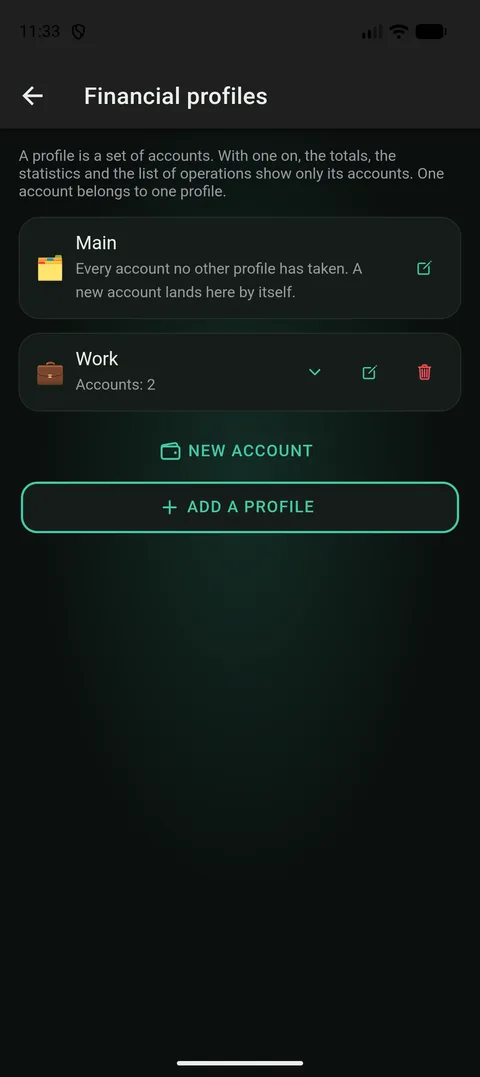
The Main profile is always first in the list. It does not count towards your plan’s limit — you never had to make it. - 2
Pick an icon from the emoji panel. You will see it in the switcher on the main screen and next to your transactions. A small picture is quicker to spot than a name, so pick one you will recognise at a glance.
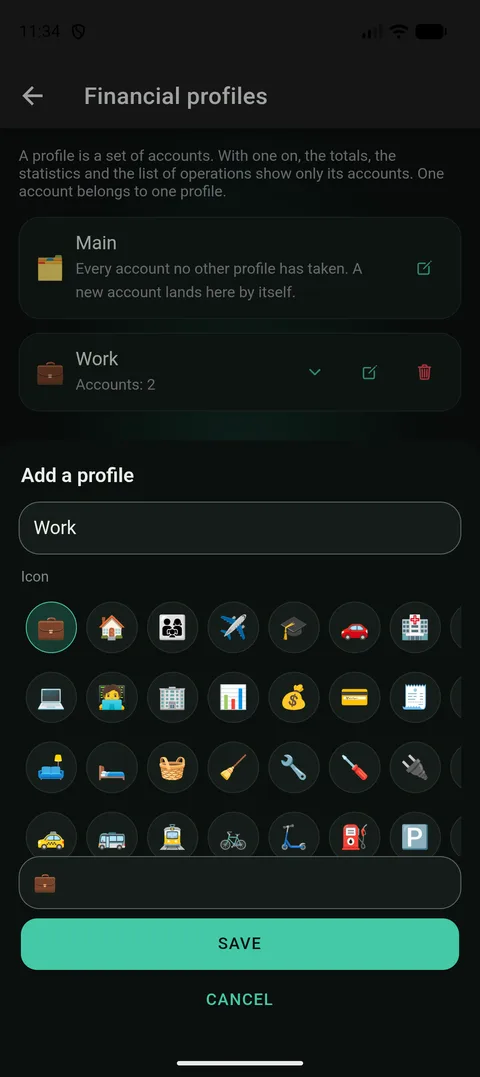
You pick the icon from a panel instead of typing it — on a phone, choosing an emoji is quicker than finding it on the keyboard. - 3
Tick the accounts that belong to this profile. Each account can be in only one profile. If you tick one that is already in another profile, the app tells you which one — it never moves it quietly.
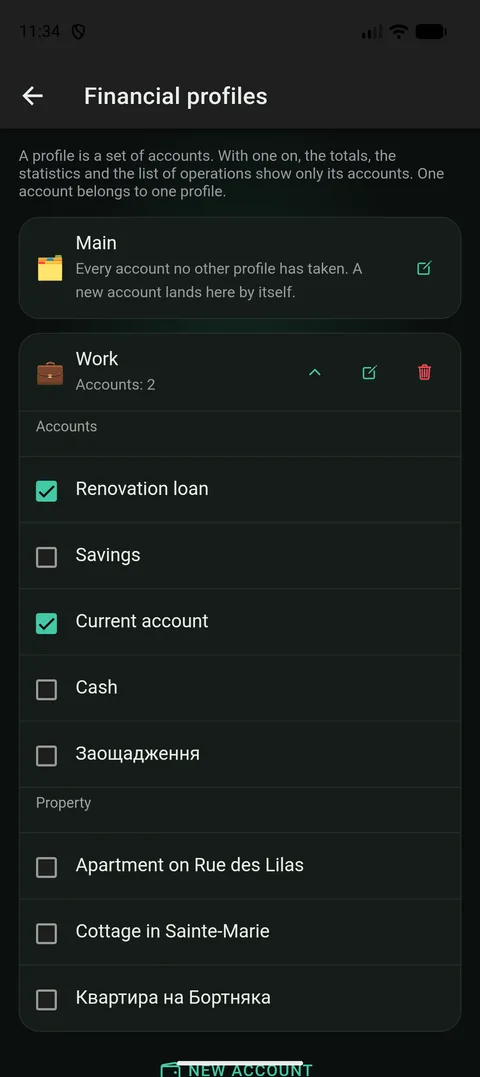
A ticked account joins the profile together with all its transactions. Nothing to sort by hand. - 4
Go back to the main screen and switch to your new profile. The whole app follows: the main screen, statistics, the list of transactions and the budget. The app also remembers your choice for next time.
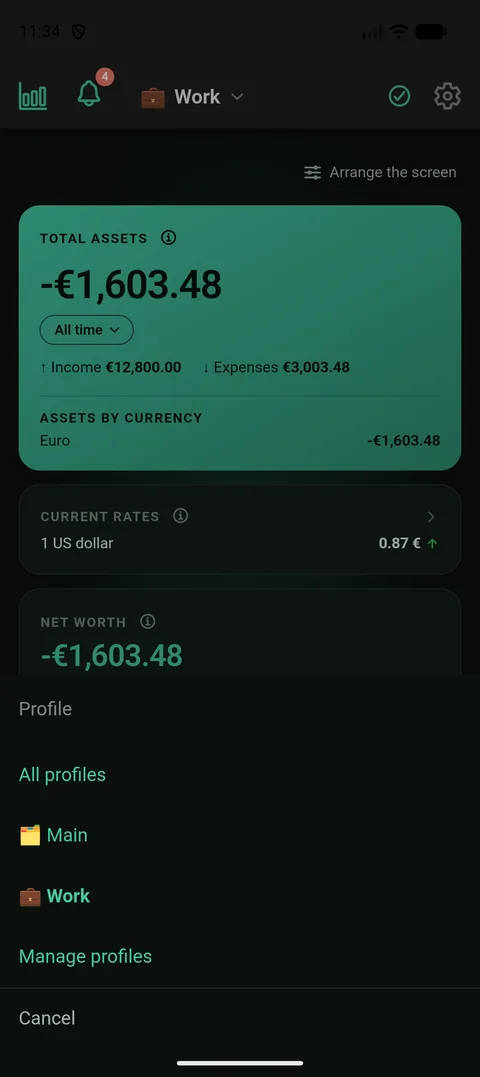
The switcher sits right where you look at your balance. Your choice is remembered and works on every screen. - 5
Look at the statistics with your profile on, then choose All profiles. Same numbers, two views: first just this part of your money, then all of it. That second view is what makes a profile more than just another account.
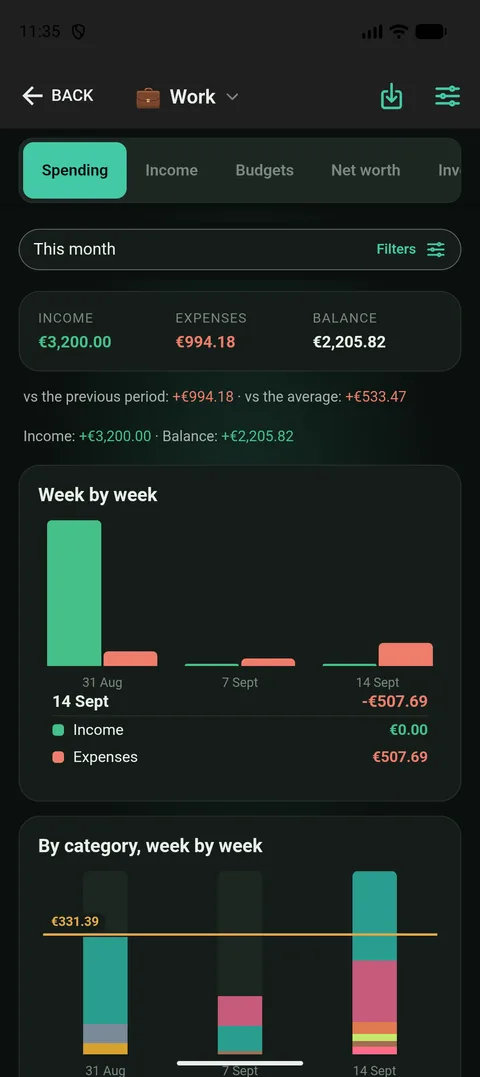
The same statistics with a profile on: only its accounts go into the numbers.
A profile is a group of accounts, not a label on every purchase
The obvious way to split money is to ask, with every purchase, «is this work or personal?». It sounds simple, but it is the worst way: you have to decide it every single day, a slip shows up a month later in a report, and all the old records stay unsorted. So in FinLad a profile is attached to the account, not to each purchase.
A purchase belongs to the profile of the card it was paid with. That is the whole rule. You decide once, when you add the card, and after that everything on it lands in the right place on its own. A bank statement you import, a receipt you scan, a monthly subscription — all of them are already in the right profile, because the card is.
That is also why one account cannot be in two profiles. A card you use for both work and groceries cannot be split down the middle, and the app says so plainly instead of showing a number that is half somebody else’s. If you really mix the two, the honest fix is a separate card, not a separate label.
The Main profile: everything the others have not taken
You already have one profile, called Main, and it works a little differently. It is not a list you fill in. It simply holds every account no other profile has taken. So nothing can get lost: a card you add tomorrow goes into Main on its own, because no other profile has asked for it.
In practice this means you only need to make one profile. Create Work, tick your work account, and everything else stays in Main. You can rename Main to whatever you like. You cannot delete it, because every account has to be somewhere.
Main does not count towards your plan’s limit either. The limit counts the profiles you made, not the one that was there from the start.
What changes when a profile is on — and what stays the same
- The main screen, the statistics and the list of transactions show only that profile’s accounts. They are the same numbers, just counted over fewer accounts.
- A budget belongs to a profile: one plan per profile per month, measured against that profile’s spending. So under All profiles there is no budget — there is no single plan across them, and adding them up would not mean anything. The screen tells you which profile to pick to see one.
- Under a profile you made, net worth counts only that profile’s accounts. Property and investments belong to no profile. Under Main they count as they always did — «my money that is not work» does include the flat.
- Loans, goals and recurring payments are not split by profile. They stay attached to accounts, and you find them where you always did.
- Your profiles, and the one you chose, sync between your devices. What you set up on the phone is what the browser opens with.
Deleting a profile deletes no money
A profile is just a way of looking at your accounts, and that is all that gets deleted. Your accounts, transactions and balances stay exactly where they are. The accounts that were in the profile go back to Main — where they would have been if the profile had never existed.
The confirmation says exactly that, instead of just asking «are you sure?». That is a rule across the whole app: before anything is deleted, the dialog tells you what will happen to your data.
Why this is a paid feature
Keeping money apart is already free: open a second account and leave it out of the totals. What that cannot do is show you the whole picture. Two separate accounts do not add up on their own, and «how much do I have altogether?» stays a question you answer in your head.
Profiles give you both answers from the same records: just the part, with a profile on, and the whole, under All profiles. That second answer is what you pay for. It is also why the free plan does not show the screen at all, rather than a version of it that only half works.
Which plan you need
Financial profiles are part of Plus. You can make up to three profiles of your own; the Main profile is always there and does not count towards those three. On the free plan the screen is not shown, and the app always shows all your accounts together.
Worth knowing
- An account can be in only one profile. If you pick one that is already taken, the app tells you which profile has it — a single card cannot be split between two.
- All profiles shows no budget. There is no single plan across profiles, and the screen tells you which profile to pick to see one.
- The Main profile cannot be deleted, but you can rename it. Until you do, it is shown with the app’s own word for it in your language.
- Your profiles and the one you chose sync between devices along with your other settings. Nothing needs setting up twice on a second phone or in the browser.