Utility bills: one photo, and the amounts land on the right services
Once a month a bill arrives with a dozen lines on it, and you pay the whole thing in one go. Typing every line into an app is dull and slow. So a photo does it instead: you snap the bill, and the app spreads the amounts across your services and ties them to the one payment you already made. The same screen keeps everything else about the flat too: meter readings, tariffs, what is owed and how late, and how the bill changes from month to month.
Author: Oleksii Itseksonthe developer of FinLad, and its user since 2025
Published: Updated:
How it works
- 1
Start with the home and its services, once. Open More, then Utility payments, and add the property, or pick one you already have under What I own. Call it what you call it at home: «Flat», «Mum’s house». Then add the services you get billed for: water, gas, electricity, heating, waste. You do this only once.
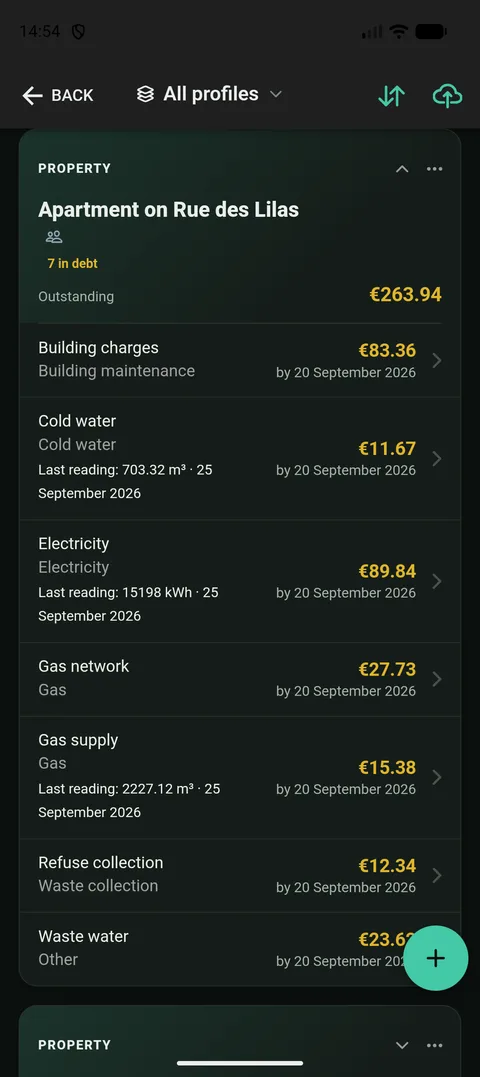
The home and its services are set up once. After that it is one photo a month. - 2
Pay the bill as you always do, and make sure that payment is in the app as one expense. If your bank is connected or you imported a statement, it is already there. If not, add an expense for the whole amount that left your card, like any other purchase. That is the real money. Everything after this only explains where it went.
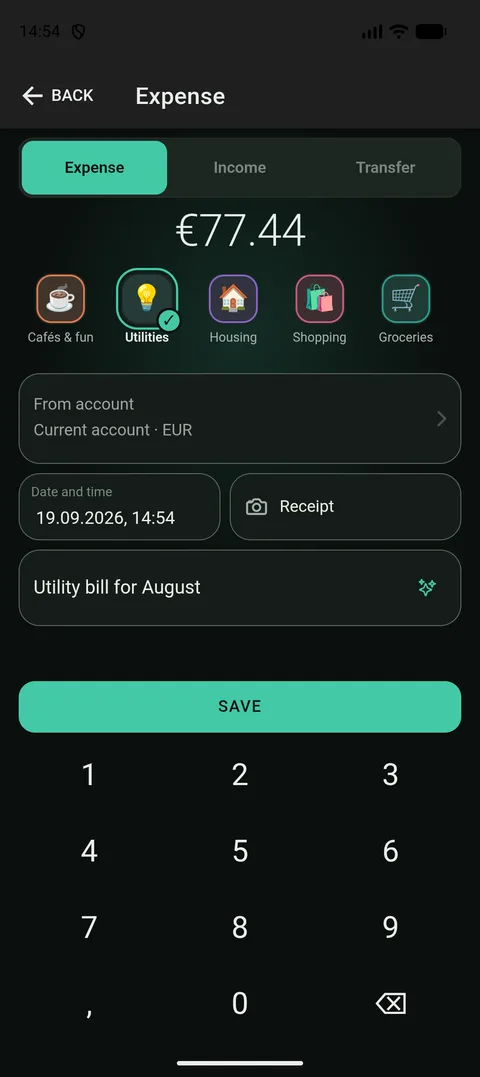
One expense for the whole amount. That is the real money; nothing after this moves a balance. - 3
Go back to the home and tap Read a bill. Photograph the whole sheet, so both the service names and the column of amounts are in the frame. Hold it flat and use daylight, that reads best.
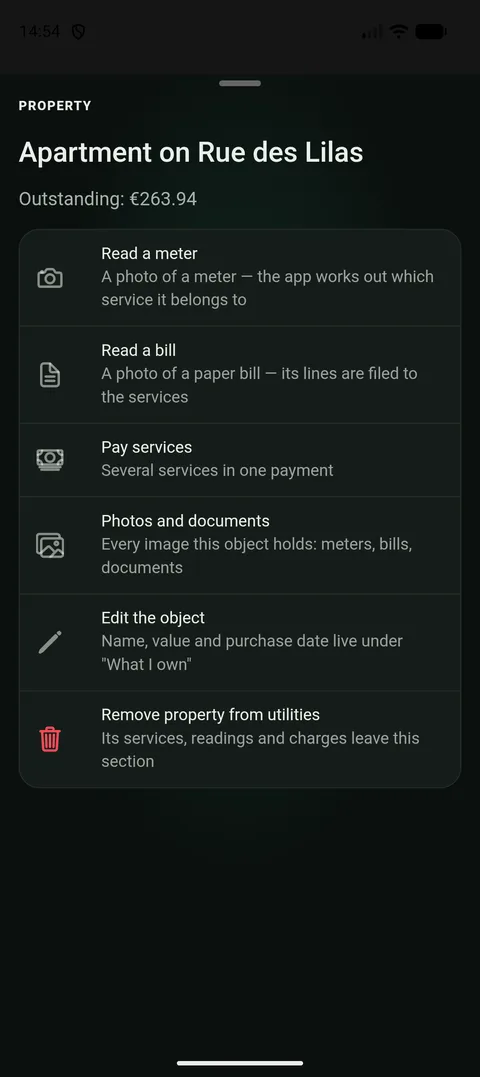
The button lives on the home, because one bill usually covers all of its services at once. - 4
Check what came out. The app shows the bill’s lines next to your services, with the amounts filled in. Untick anything you are not paying this time. If a service is missing, you can create it right there without leaving the screen.
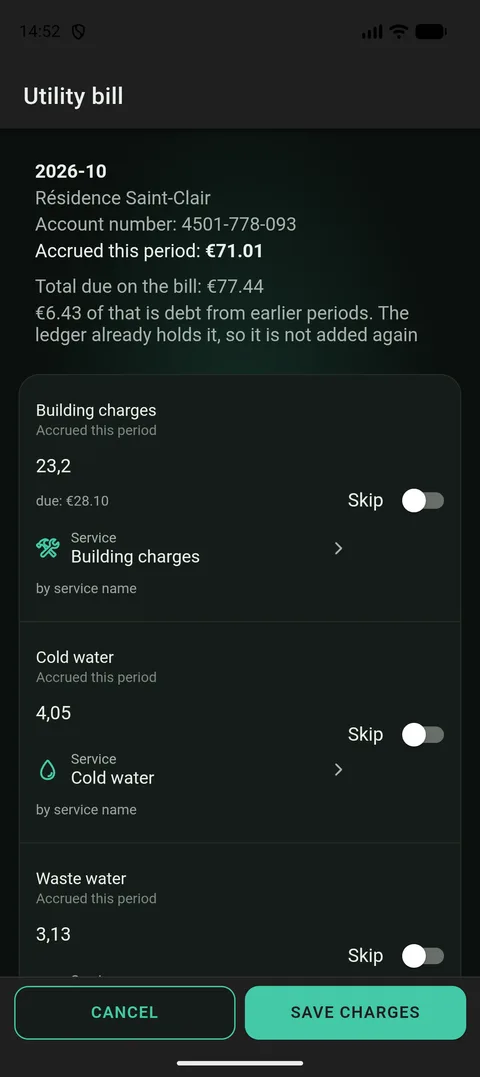
Every line can be unticked or moved to another service. Nothing is written until you confirm. - 5
At the bottom, point to the expense from step 2 and save. Each service’s debt goes down by its own share, and your card shows exactly the money that really left it. No second expense appears. Paid in cash, or from an account the app does not know? Then leave the expense empty: the app asks whether to record one, and writes it for you.
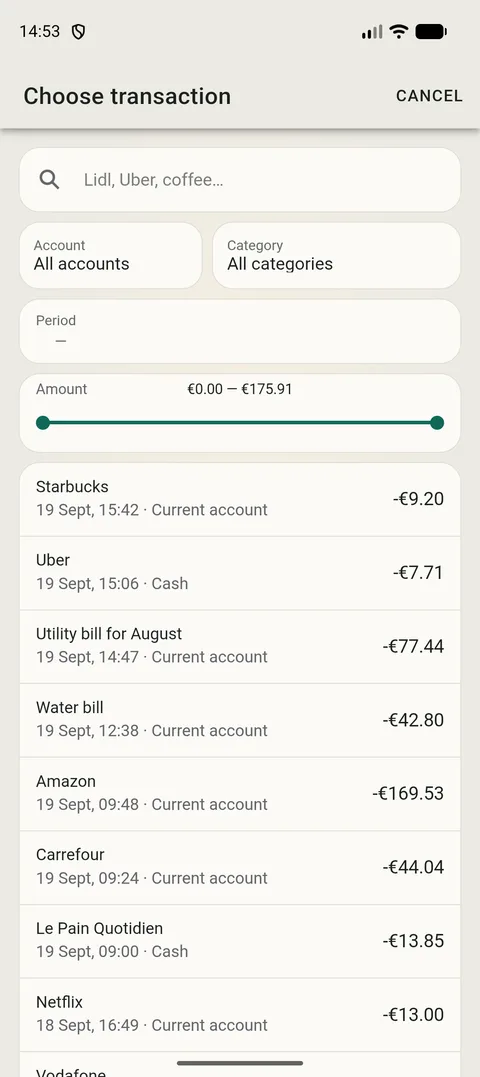
Here you point to the expense from step 2, and the app explains it service by service.
Why the expense comes first and the bill second
The money left once, as one amount, from one card. If the app made an expense for every line of the bill, your records would say you paid for utilities twice: once in real life and once on paper. So it does not do that.
It does something simpler instead: it takes your expense and explains what the money went on. The figure on your card does not change by a penny. What changes is what you can see: how much of it was water, how much gas, how much heating.
Hence the order: the expense, then the photo of the bill, then pointing at that expense. Paid in cash, or from an account the app does not know? Then there is no expense to point at, and the app asks «Record an expense?». Say yes, and it writes the expense for you and explains it right away. Say «Payments only», and the debt goes down without touching any account.
What the app takes from the bill, and what it leaves
- It takes the service name, the period, the amount charged for this month, and the date it has to be paid by.
- It does not take the debt carried over from earlier months. If you owe something, the app already knows: it worked that out from what you recorded before. Copying it in again would double the debt for no reason. So it shows the printed figure next to its own and, when the two disagree, says so and leaves the decision to you.
- It shows any penalty and any subsidy printed on the sheet, so you can see how the amount due was arrived at.
- It adds the lines up and compares them with the grand total at the bottom. If they differ, it shows the difference rather than hiding it. The figure the provider printed is the one that counts.
Reading the same bill twice
Nothing breaks. Before writing anything the app checks whether a charge for this month already exists on that service. If it does, it asks line by line: skip or replace.
It also warns about one sneaky case: when it looks as though the wrong column was read. The sign is simple. Every line charges exactly what is owed, and there is no debt and no payment anywhere on the sheet. The sums still add up, so only an eye can catch it. The app warns and never blocks: you have the bill in front of you.
Meters and tariffs: charges that write themselves
A bill is not the only way a charge appears. A service with a meter, such as water, gas or electricity, keeps its readings and its tariff, the price per cubic metre or per kilowatt-hour. Enter a new reading, or photograph the meter (that has its own page), and the app works out what the gap between the two readings cost and writes the charge itself. Tariffs are kept with their dates, so an old month is priced at the old rate, and a month with a price change in the middle is split day by day.
The provider then prints its own figure on the bill, and the two rarely match exactly: a standing charge, a subsidy, a rounding, a reading the provider had not received yet. The app keeps both and shows the difference. What you owe is always what the provider printed. The meter figure is there so you can see where the difference came from.
A service without a meter, such as rent, building maintenance or internet, can raise its own charge too. Tick «Charge every month», enter the first amount, and it repeats on the payment day. A month that already has a charge is left alone. Rent is offered only on a home marked as rented: paying rent on a flat you own is not a thing.
Who owes what, and how late
Each service shows what is outstanding: everything charged minus everything paid. The home shows the total across its services and how many of them are in debt, and the same figure sits on the dashboard, so you do not have to open the section to know.
A payment settles the oldest charge first. That is why the app can say not just «you owe 900» but «July and August are unpaid, and July is twelve days overdue». Pay more than you owe and the extra stays as credit, which quietly covers the next charge.
You can also give a service a payment day and a meter-reading day. The app then reminds you before each one, once per home rather than once per service, and goes quiet as soon as the payment or the reading is recorded.
Paying several services at once, and where the money went
You do not need a bill to pay. Choose «Pay services», tick the services you are paying, set the amounts, and point to the one transaction that covered them all. If you picked a transaction, its amount and date are filled in for you. If there is none, the app offers to record the expense, just as with a bill.
The utilities tab in Statistics answers about money first: what you paid month by month and what each service took over the period. Then it digs in. «Why the bill changed» splits the change into using more or less and the rate going up. «This month’s bill, projected» estimates the month from your recent usage and the tariff in force. «Billed and paid» puts the two side by side and adds how often you paid on time.
Services in different currencies are added up in your base currency, and the app shows the rates it used. A home with a single currency is shown in that currency, with no conversion.
Photos, several homes and the rest of the family
- Every photo a home holds, meters, bills and the home itself, is listed in one place, «Photos and documents», in date order and with a note of what it is. Each can be opened full-screen or saved as a file. A photo of the dial is the evidence to point at in an argument with the supplier.
- Several homes sit as separate cards, in the order you arranged them, and each starts folded: the card head already answers who owes what. Open the one you came for.
- Share a home with your family and its utilities come along: services, readings, charges and payments. Whoever adds entries can enter a reading or a payment, and the list shows who did. The page on family access explains the rest.
- Old readings can be brought in from a spreadsheet, a CSV or XLSX file, with the home, the service, the date and the value. Import the same file twice and nothing doubles: a reading already there is skipped or replaced, your choice, row by row.
Which plan you need
Reading a bill is part of Plus: it needs both document scanning and utility services. Without it the important part still works: services, charges, payments and what is owed are kept by hand, and a photo of the bill can simply be attached to the record.
Worth knowing
- The app does not write an expense unless you ask. Usually the money is already in your records, imported or typed, and the bill only explains it. If it is not, the app offers to record the expense in one tap.
- Debt from earlier months is not copied from the bill: the app already has it from your own records. It only checks its own figure against the printed one.
- A service that is not on your list yet can be created right on the confirmation screen, without starting over.
- To be read, the photo is sent through our server to an AI service (Google Gemini, or Anthropic if it is unavailable). The pictures are not used to train the models, and recognition can be switched off in settings.
- Photograph the whole sheet, held flat. Creased paper and steep angles read worse, and the amounts live in columns. The columns are the point.